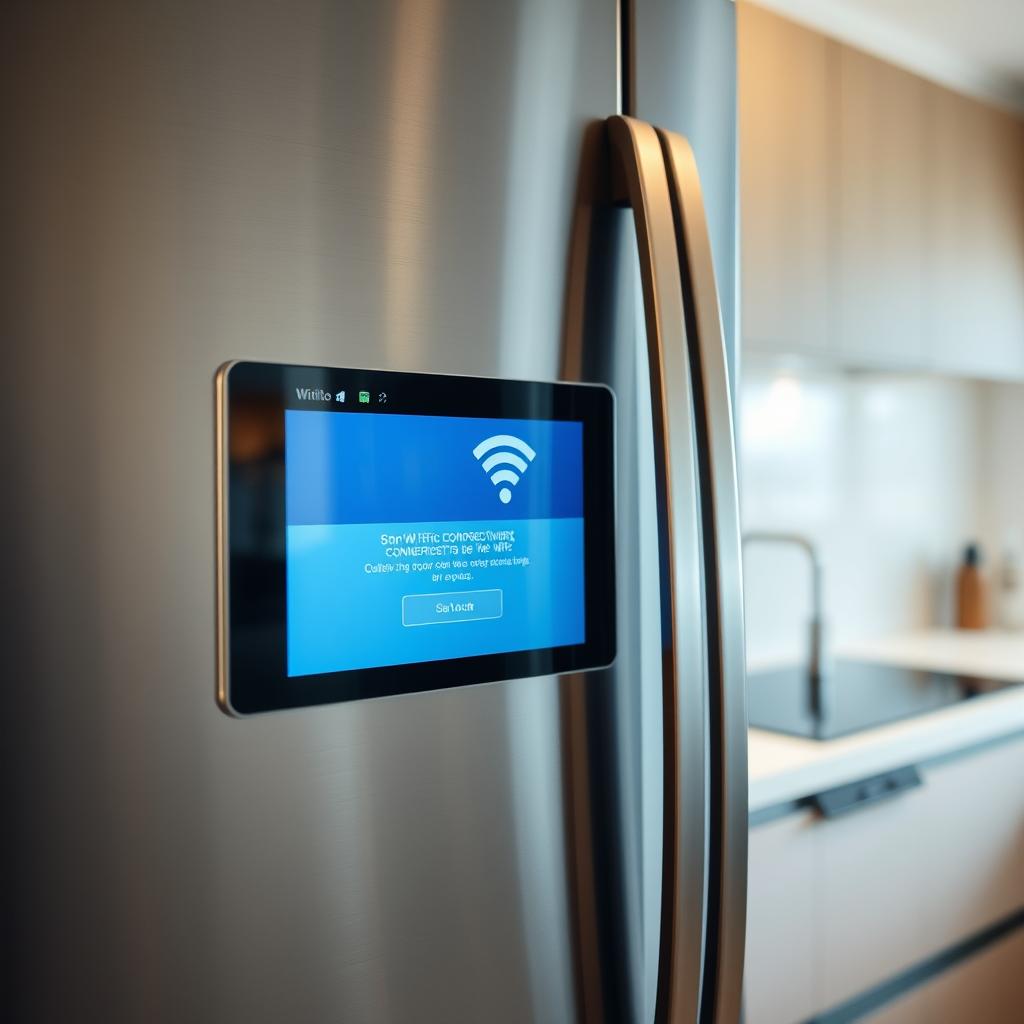
Smart appliances are increasingly common in Canadian homes — refrigerators that let you see inside from your phone, washing machines you can start remotely, dryers that send a notification when the load is done, and dishwashers you can control with voice commands. When everything works, it feels like living in the future. When the Wi-Fi connection drops, though, it can feel more like a headache than a convenience.
Wi-Fi communication issues are one of the most common complaints among smart appliance owners. The good news is that most connectivity problems have straightforward solutions. In this guide, we’ll cover why smart appliances lose Wi-Fi connectivity, how to troubleshoot the most common issues, and when a connection problem might actually indicate a hardware issue that needs professional attention.
Why Smart Appliances Struggle with Wi-Fi
Before diving into solutions, it helps to understand why smart appliances are particularly prone to connectivity problems compared to your phone or laptop:
Location and Physical Barriers
Appliances are typically in fixed positions — against walls, in corners, inside cabinets, or in the basement laundry room. Unlike a laptop you can move closer to the router, your refrigerator isn’t going anywhere. Metal appliance bodies, concrete walls, and multiple floors between the appliance and router all weaken the Wi-Fi signal.
2.4 GHz Only
Most smart appliances only support the 2.4 GHz Wi-Fi band, not the faster 5 GHz band. While 2.4 GHz has better range through walls, it’s also the more congested band — shared with other devices, baby monitors, Bluetooth devices, and even microwave ovens. This congestion can cause intermittent disconnections.
Limited Antenna Design
Smart appliances have small, internal Wi-Fi antennas that are constrained by the appliance’s metal housing. These antennas are significantly less capable than those in dedicated networking devices, smartphones, or laptops.
Firmware and Software Limitations
Unlike smartphones that receive frequent updates, appliance firmware updates are less common and the Wi-Fi stacks in appliances may not be as robust or up-to-date as those in dedicated computing devices.
Troubleshooting Smart Appliance Wi-Fi Issues
Work through these solutions in order, from simplest to most involved:
Step 1: Check Your Wi-Fi Network
Before focusing on the appliance, verify that your Wi-Fi network is working properly. Can other devices connect? Is your internet service working? Sometimes the simplest explanation is a temporary internet or router outage.
- Test your internet connection on a phone or laptop.
- If other devices are also having trouble, restart your modem and router (unplug for 30 seconds, then plug back in).
- Check with your ISP if the outage persists.
Step 2: Restart the Appliance’s Wi-Fi Module
Like any connected device, the appliance’s Wi-Fi module can benefit from a fresh start. The method varies by brand:
- Power cycle: Unplug the appliance for 60 seconds, then plug it back in. This resets the Wi-Fi module along with the control board.
- Wi-Fi reset: Many appliances have a dedicated Wi-Fi reset option in their settings menu or a reset button. Consult your owner’s manual for the specific procedure.
- Re-pair the appliance: Delete the appliance from your manufacturer’s app, then set it up again from scratch. This establishes a fresh connection and can resolve authentication issues.
Step 3: Check the Wi-Fi Signal Strength
Weak signal is the most common cause of smart appliance connectivity problems. Here’s how to check:
- Use your phone’s Wi-Fi settings or a Wi-Fi analyzer app to check signal strength at the exact location of the appliance.
- Signal strength is measured in dBm. For reliable smart appliance operation, you want -50 dBm or stronger (a higher number is weaker — -30 is excellent, -60 is fair, -70 or lower is poor).
- If the signal is weak, you’ll need to improve coverage in that area (solutions below).
Step 4: Improve Wi-Fi Coverage
If signal strength is the issue, here are effective ways to improve it:
- Move your router closer to the appliance if possible. Even a small change in router position can make a significant difference.
- Add a Wi-Fi extender or mesh node near the appliance. Mesh Wi-Fi systems (like Google Nest, Eero, or TP-Link Deco) are particularly effective at providing consistent coverage throughout a home.
- Use a dedicated 2.4 GHz network. If your router broadcasts a combined 2.4/5 GHz network, some appliances struggle to stay on 2.4 GHz. Creating a separate 2.4 GHz network specifically for smart home devices can resolve this.
- Reduce interference. Move the router away from other electronics, especially microwave ovens, which operate on the same 2.4 GHz frequency and can cause significant interference.
Step 5: Check for Network Configuration Issues
Certain router settings can prevent smart appliances from connecting or staying connected:
- Network name (SSID): Avoid special characters in your network name. Stick to letters and numbers. Some appliances can’t handle spaces or symbols.
- Password: Similarly, keep the Wi-Fi password to standard characters. Very long or complex passwords can cause issues with some appliance input methods.
- Security protocol: Most smart appliances support WPA2. Some older models may not support WPA3. If you’ve recently upgraded your router and enabled WPA3-only security, your appliances may lose connectivity. Use WPA2/WPA3 mixed mode for compatibility.
- Band steering: If your router automatically steers devices between 2.4 GHz and 5 GHz, it may push the appliance to 5 GHz, which the appliance can’t use. Disable band steering or create a dedicated 2.4 GHz network.
- MAC filtering: If you use MAC address filtering on your router, you’ll need to add the appliance’s MAC address to the allowed list.
- Too many connected devices: Most home routers can handle 20-30 connected devices. If you have a smart home with dozens of devices, your router may be overwhelmed. Consider upgrading to a router designed for high device counts.
Step 6: Update Firmware
Check whether a firmware update is available for your appliance. Manufacturers occasionally release updates that improve Wi-Fi stability and fix known connectivity bugs. Updates are usually available through the manufacturer’s smartphone app.
Brand-Specific Connectivity Tips
Samsung SmartThings
Samsung appliances connect through the SmartThings app. Common issues include the app losing connection during initial setup (stay close to the appliance during pairing) and the appliance not appearing in the app after a router change (delete and re-add the appliance). Samsung also requires a Samsung account for app functionality.
LG ThinQ
LG appliances use the ThinQ app. LG’s Smart Diagnosis feature, which transmits diagnostic data via sound to the app, works independently of Wi-Fi — so even if your Wi-Fi connection is problematic, you can still use Smart Diagnosis by holding the phone near the appliance.
Whirlpool and Maytag
Whirlpool-manufactured appliances connect through the Whirlpool or Maytag apps. These brands tend to require a stronger Wi-Fi signal than some competitors. If you’re having trouble connecting, ensuring a strong 2.4 GHz signal is especially important.
Bosch Home Connect
Bosch appliances use the Home Connect app. Bosch appliances typically have a dedicated Wi-Fi setup mode that’s activated through the appliance’s control panel. Make sure to activate this mode before attempting to pair through the app.
When Wi-Fi Problems Indicate a Hardware Issue
In some cases, persistent Wi-Fi connectivity issues aren’t caused by your network at all — the appliance’s Wi-Fi module or control board may be faulty. Consider a hardware issue if:
- The appliance has never successfully connected to Wi-Fi despite a strong signal and correct settings.
- The appliance previously connected fine but has permanently lost connectivity after a power surge or outage.
- Other smart devices in the same location work fine on the same network.
- The appliance’s Wi-Fi setup mode won’t activate or the appliance doesn’t appear in the app’s discovery process.
- You’ve tried all the troubleshooting steps above with no improvement.
A faulty Wi-Fi module or control board requires professional repair. If you’re in the Greater Vancouver area, Tech Angels Appliance Repair can diagnose smart appliance connectivity issues and replace faulty components. Call us at (604) 265-3565.
Smart Appliances Still Work Without Wi-Fi
One important point to remember: all smart appliances work as regular appliances even without a Wi-Fi connection. Your Samsung fridge still keeps food cold, your LG washer still washes clothes, and your Bosch dishwasher still cleans dishes. Wi-Fi adds convenience features — remote monitoring, notifications, diagnostics — but the core functionality is completely independent.
If you’re struggling with connectivity and the smart features aren’t essential to you, there’s nothing wrong with using the appliance in “offline” mode. Focus on the connectivity when you have time and patience to troubleshoot properly.
Final Thoughts
Smart appliance Wi-Fi issues are frustrating, but they’re almost always solvable. Start with the basics — verify your network, restart the appliance, check signal strength — and work your way through the more advanced troubleshooting steps if needed. In most cases, a combination of better Wi-Fi coverage and correct router settings will restore reliable connectivity.
When the problem goes beyond your network and into the appliance hardware itself, professional help is the way to go. Tech Angels serves the Greater Vancouver area with expert repair for all major smart appliance brands. Book online or call (604) 265-3565.